Post New Topic

Photoshop Fun!!

coxmandi Posted:

Photoshop Fun!!

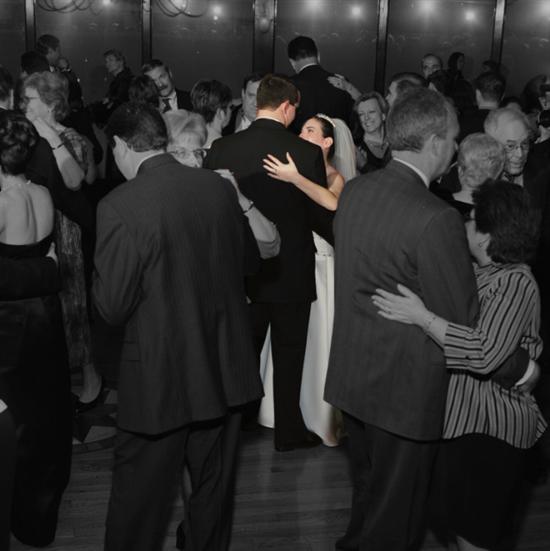
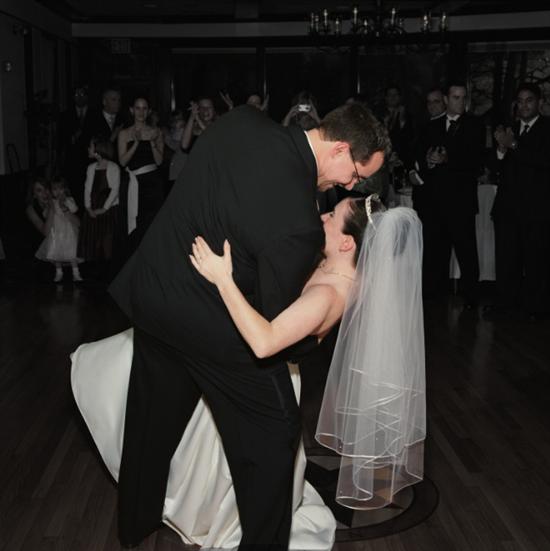
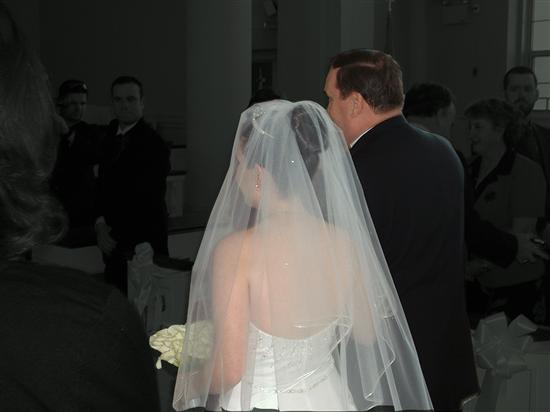
Here are some proofs that I played with in Photoshop Elements!!! Its so easy ladies, it takes less than 10 min per pic once you learn the easy steps


Maybride519 Posted:

Re: Photoshop Fun!!

Ooooo...very pretty! Nice job!

JohnnysGirl350 Posted:

Re: Photoshop Fun!!

Very nice!!!

DCSAAB06 Posted:

Re: Photoshop Fun!!

Beautiful!! Isnt it a great program??

You can make ur photos just as amazing as the pros. NICE JOB!
enjft Posted:

Re: Photoshop Fun!!

It looks great! please post the instructions, I have the software and yet to play with it.

STUF04 Posted:

Re: Photoshop Fun!!

Amazing pics!!!!! You look great!
coxmandi Posted:

Re: Photoshop Fun!!


Posted by enjft

It looks great! please post the instructions, I have the software and yet to play with it.


Browse to and open a picture.
In the top right where all the tabs are select layers.
You will see the picture you have opened and it is labeled as
'background'
Right click on the work background and select duplicate layer.
Name it and press ok.
On the left select the magnetic lasso tool and select the area you want
to be in color in the picture.
Now the item will be highlighted.
Select edit on the tool bar then copy.
Then select edit and paste.
Go back to the layers tab and select the background copy.
Go to enhance on the toolbar and select adjust color then remove color. or try 'Image', 'Adjustments', 'Desaturate'
That will make it black and white and your selection stay in color.
enjft Posted:

Re: Photoshop Fun!!


Posted by coxmandi


Posted by enjft

It looks great! please post the instructions, I have the software and yet to play with it.


Browse to and open a picture.
In the top right where all the tabs are select layers.
You will see the picture you have opened and it is labeled as
'background'
Right click on the work background and select duplicate layer.
Name it and press ok.
On the left select the magnetic lasso tool and select the area you want
to be in color in the picture.
Now the item will be highlighted.
Select edit on the tool bar then copy.
Then select edit and paste.
Go back to the layers tab and select the background copy.
Go to enhance on the toolbar and select adjust color then remove color. or try 'Image', 'Adjustments', 'Desaturate'
That will make it black and white and your selection stay in color.


Thanks so much!

Reply to this topic

Log in to reply or quote a post.